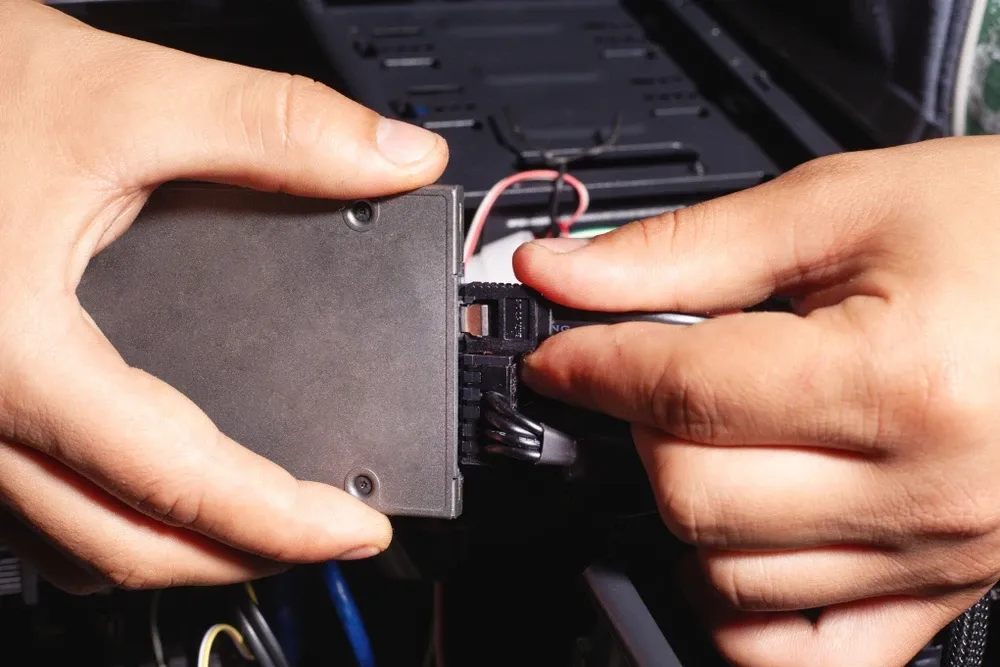
Formatting an SSD is an essential process whether you’re setting up a new drive, troubleshooting storage issues, or wiping your system clean. Knowing How To Format SSD correctly can help improve performance, fix errors, and prepare it for a fresh operating system installation. In this guide, we’ll explain everything you need to know about formatting SSDs across Windows, macOS, BIOS, and external devices.
Content
What Does Formatting an SSD Do?
Formatting an SSD erases all data and prepares the drive for use with a specific file system (like NTFS, FAT32, or APFS). It’s different from deleting files because formatting ensures the removal of partitions and resets the drive structure, which is useful when setting up a new SSD, changing operating systems, or removing malware.
How To Format SSD On Windows 11
If you’re wondering How To Format SSD Windows 11, the process is straightforward. Follow these steps:
Press Windows + X and select “Disk Management.”
Right-click on the SSD you want to format.
Choose “Format,” assign a name, and select a file system (NTFS is recommended).
Click OK, and Windows will complete the process.
This method is ideal when setting up or cleaning a drive on the latest Windows OS.
How To Format SSD On Windows 10
The steps for How To Format SSD Windows 10 are nearly identical to Windows 11. Open Disk Management, locate the SSD, and follow the formatting prompts. You can also use Command Prompt for more control:
bashCopyEditdiskpart
list disk
select disk #
clean
create partition primary
format fs=ntfs quick
This command-line method is helpful for advanced users who want more precise SSD formatting.
How To Format SSD From BIOS
Sometimes, you may need to format your SSD before booting into an OS. This is where How To Format SSD From BIOS becomes important. BIOS itself doesn’t allow direct formatting, but you can use a bootable USB with Windows or Linux installer tools to access formatting options before OS installation.
Create a bootable USB with installation media.
Boot from USB and choose “Custom Installation.”
Delete existing partitions on the SSD.
Format the drive before proceeding with OS installation.
How To Format SSD Mac
Mac users should follow the Disk Utility tool to format their drives. Here’s How To Format SSD Mac:
Open Disk Utility from Applications > Utilities.
Select your SSD from the sidebar.
Click “Erase,” name the drive, and choose a format (APFS or Mac OS Extended).
Click “Erase” again to complete the process.
This ensures your SSD works seamlessly with macOS environments.
How To Format SSD With Windows On It
If you plan to format the same SSD that has Windows installed, you’ll need to boot from external media. For How To Format SSD With Windows On It, use the Windows Media Creation Tool to make a bootable USB:
Boot into the Windows installation tool.
Choose “Custom: Install Windows only (advanced).”
Select your SSD, delete the partitions, and then format.
This is the most secure way to reinstall Windows cleanly.
How To Format New SSD
For brand-new drives, you must first initialize the disk. Here’s How To Format New SSD on Windows:
Go to Disk Management.
You’ll be prompted to initialize the SSD (choose GPT for modern systems).
Right-click on the unallocated space and select “New Simple Volume.”
Follow the wizard to format the drive.
After this, your SSD will be ready for use.
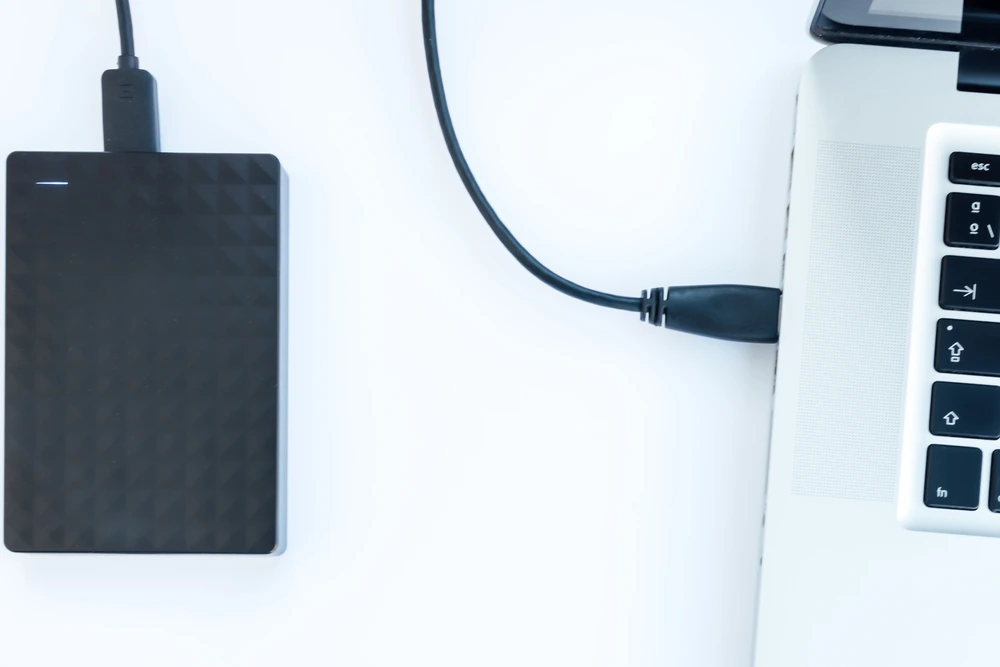
How To Format External SSD
Formatting an external SSD is easy on both Windows and macOS. For How To Format External SSD, just connect it via USB and:
On Windows: Use File Explorer > Right-click drive > Format.
On Mac: Use Disk Utility > Select drive > Erase.
Be sure to choose a compatible file system like exFAT if you plan to use the SSD on both systems.
Conclusion
Learning How To Format SSD is a vital skill for any computer user. Whether you’re preparing a new SSD, wiping out an old one, or switching systems, proper formatting ensures stability, speed, and compatibility. Always remember to back up important data before you begin, and choose the correct file system based on your use case. For more great resources and insights, check out Build Super PC
FAQs
How do I completely format my SSD?
Use Disk Management or bootable media to delete all partitions and format.
Do SSDs need to be formatted?
Yes, especially when setting them up for the first time or switching OS.
How to initialize a new SSD?
Use Disk Management to initialize and then format the unallocated space.
How do I wipe my SSD and start over?
Boot from installation media, delete partitions, and format the drive.
Tech enthusiast by passion and PC builder by obsession, Robert brings years of hands-on experience in customizing rigs, optimizing performance, and staying ahead of the latest hardware trends. Whether you’re a beginner or a seasoned gamer, he loves turning complex tech into straightforward, actionable insights for the BuildSuperPC community.