If you’re planning to upgrade your system, recycle your old device, or simply access stored data, you might wonder How To Remove Hard Drive From Laptop. Removing a laptop hard drive is a straightforward process if done carefully, and it’s crucial to know the correct steps to avoid damaging your device or losing important data.
Whether you’re using an HP laptop, running Windows 10, or recycling your old machine, this guide will walk you through everything you need to know about How To Remove Hard Drive From Laptop.
Content
Why You May Need To Remove Your Laptop Hard Drive
There are several reasons users choose to remove their laptop hard drive. These include:
Before getting started, gather the following tools:
Small Phillips-head screwdriver
Anti-static wrist strap (optional but recommended)
External drive enclosure or USB adapter (if you plan to transfer data)
Step-By-Step: How To Remove Hard Drive From Laptop
1. Power Off and Unplug
Completely shut down your laptop. Disconnect all cables, including the charger, USB devices, and external monitors. Flip the laptop upside down on a clean, flat surface.
2. Remove The Battery (If Applicable)
If your laptop has a removable battery, take it out before continuing. This ensures safety during the process.
3. Locate the Hard Drive Bay
Most laptops have a compartment on the bottom panel designated for the hard drive. In newer models, you may need to remove the entire bottom cover.
If you’re working on an HP laptop, follow a model-specific guide for How To Remove Hard Drive From Laptop HP, as designs can vary.
4. Unscrew and Remove the Drive
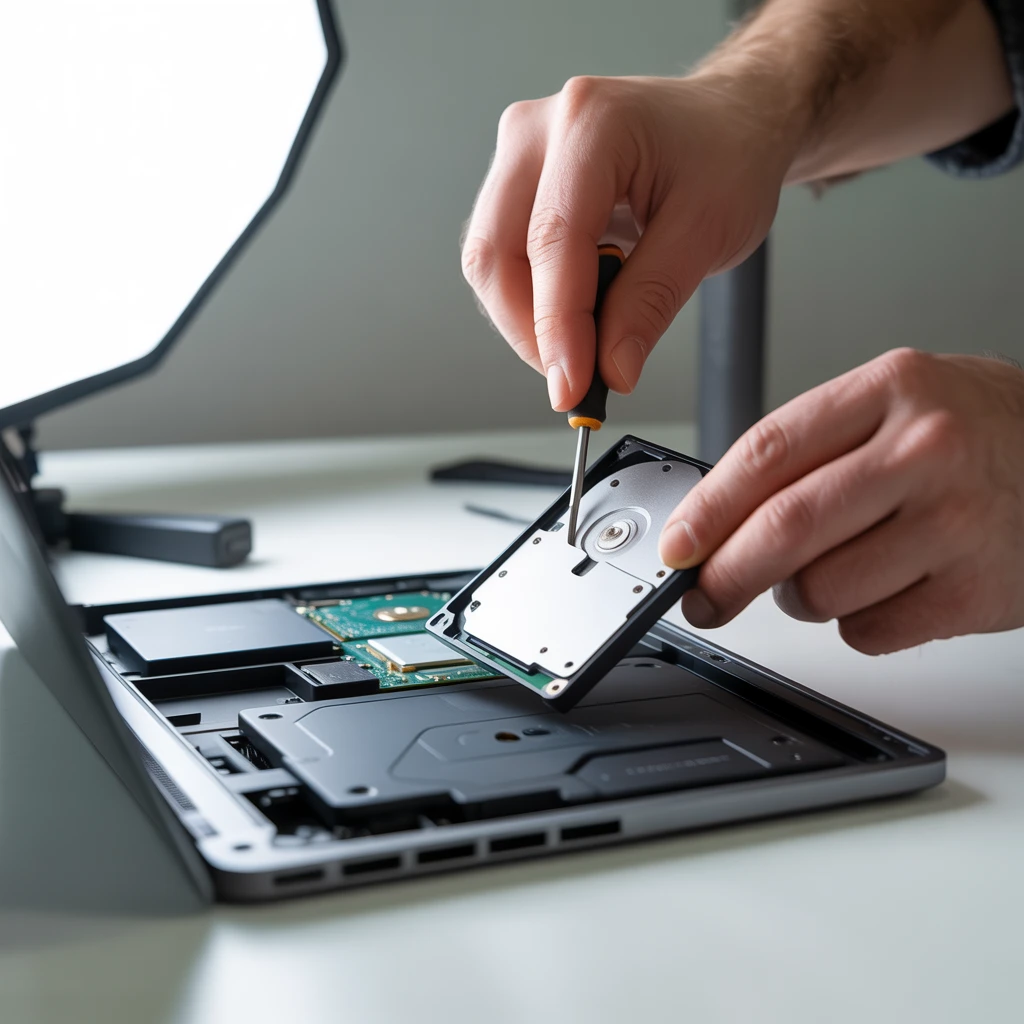
Carefully remove the screws securing the hard drive cover. Once open, you’ll see the hard drive mounted in a bracket or with securing screws. Remove these and gently slide the hard drive out of its connector.
If you’re unsure What Does A Hard Drive Look Like, it’s a rectangular component with a metal casing and a connector on one end.
5. Handle With Care
Hold the hard drive by its edges, avoiding contact with the circuit board underneath. Store it in an anti-static bag if you’re not using it immediately.
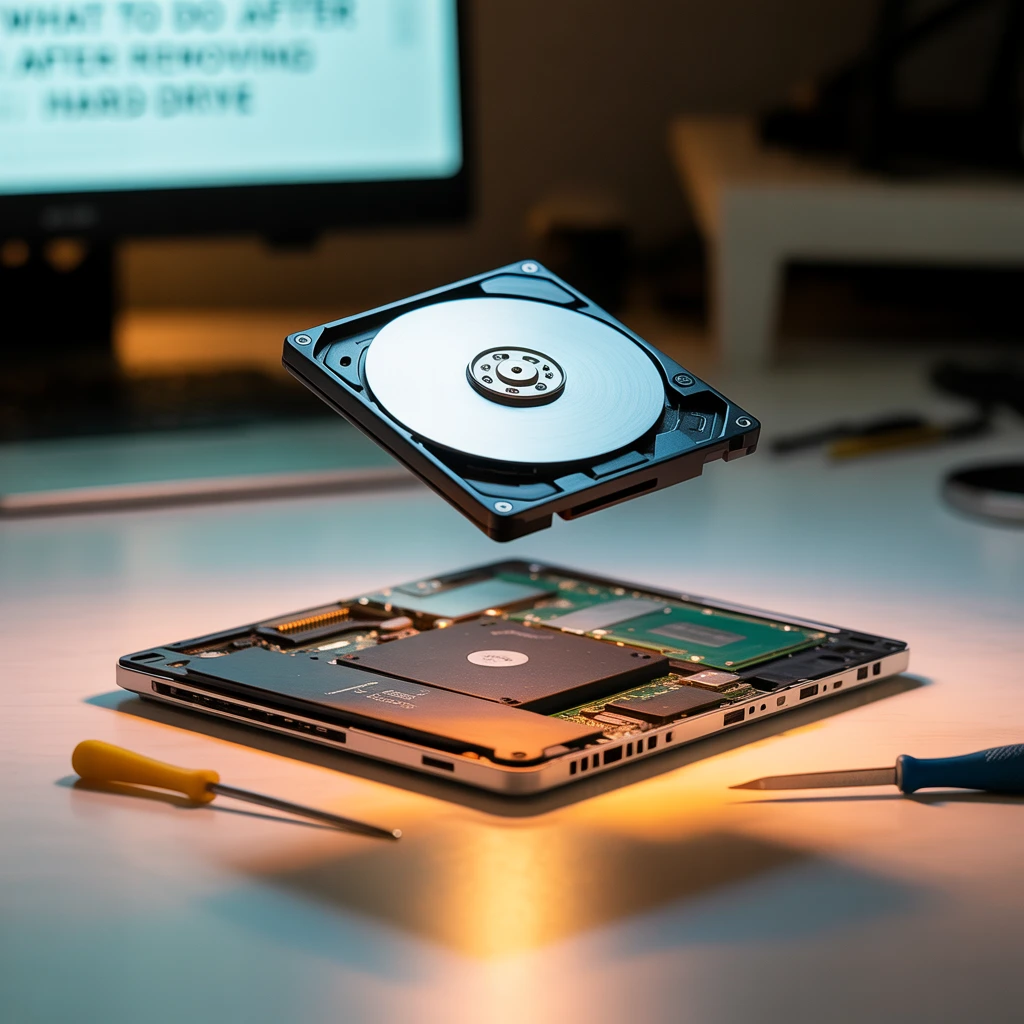
What To Do After Removing The Hard Drive
If your goal is to extract files, you can connect the drive to another computer using a USB adapter or enclosure. This is a common step in How To Remove Laptop Hard Drive And Transfer Data. It allows you to access your files without the original laptop.
For those disposing of a device, it’s vital to understand How To Remove Hard Drive From Laptop Before Recycling. Taking out the hard drive ensures that your personal data stays protected and doesn’t end up in the wrong hands.
If you’re running How To Remove Hard Drive From Laptop Windows 10, the same physical process applies, though it’s good practice to eject the drive safely through the OS if you’re transferring it while the system is running.
Conclusion
Now you know How To Remove Hard Drive From Laptop safely and effectively. Whether you’re upgrading, salvaging data, or preparing a laptop for recycling, removing the hard drive is a smart and manageable task. Just remember to back up important data and handle components with care. If you’re experiencing performance issues or preparing your device for a new user, check out our step-by-step guide on How To Reset Dell Laptop.
FAQs About How To Remove Hard Drive From Laptop
How do I get the hard drive out of a laptop?
Turn off the laptop, unplug it, remove the battery (if possible), unscrew the back panel, and carefully slide the hard drive out of its connector.
Does removing the hard drive remove all data?
No, removing the hard drive doesn’t erase data. All information remains stored on the drive unless it is formatted or physically destroyed.
How do I remove my laptop hard drive before recycling?
Turn off the device, open the back panel, and disconnect the hard drive. This prevents your personal data from being accessed by others.
How do I eject a hard drive from a laptop?
If it’s an external hard drive, use the “Safely Remove Hardware” option in your operating system. For internal drives, you need to shut down the laptop and physically remove it following proper steps.
Tech enthusiast by passion and PC builder by obsession, Robert brings years of hands-on experience in customizing rigs, optimizing performance, and staying ahead of the latest hardware trends. Whether you’re a beginner or a seasoned gamer, he loves turning complex tech into straightforward, actionable insights for the BuildSuperPC community.